
Create a countdown banner
Pick the timer type and set it to end when the sale ends.
Put a countdown on the page that ends when your sale ends, and let the banner and the sale labels switch on and off on a schedule. TA Banner runs the countdown and the banner schedule. TA Labels marks the sale products for the same dates.
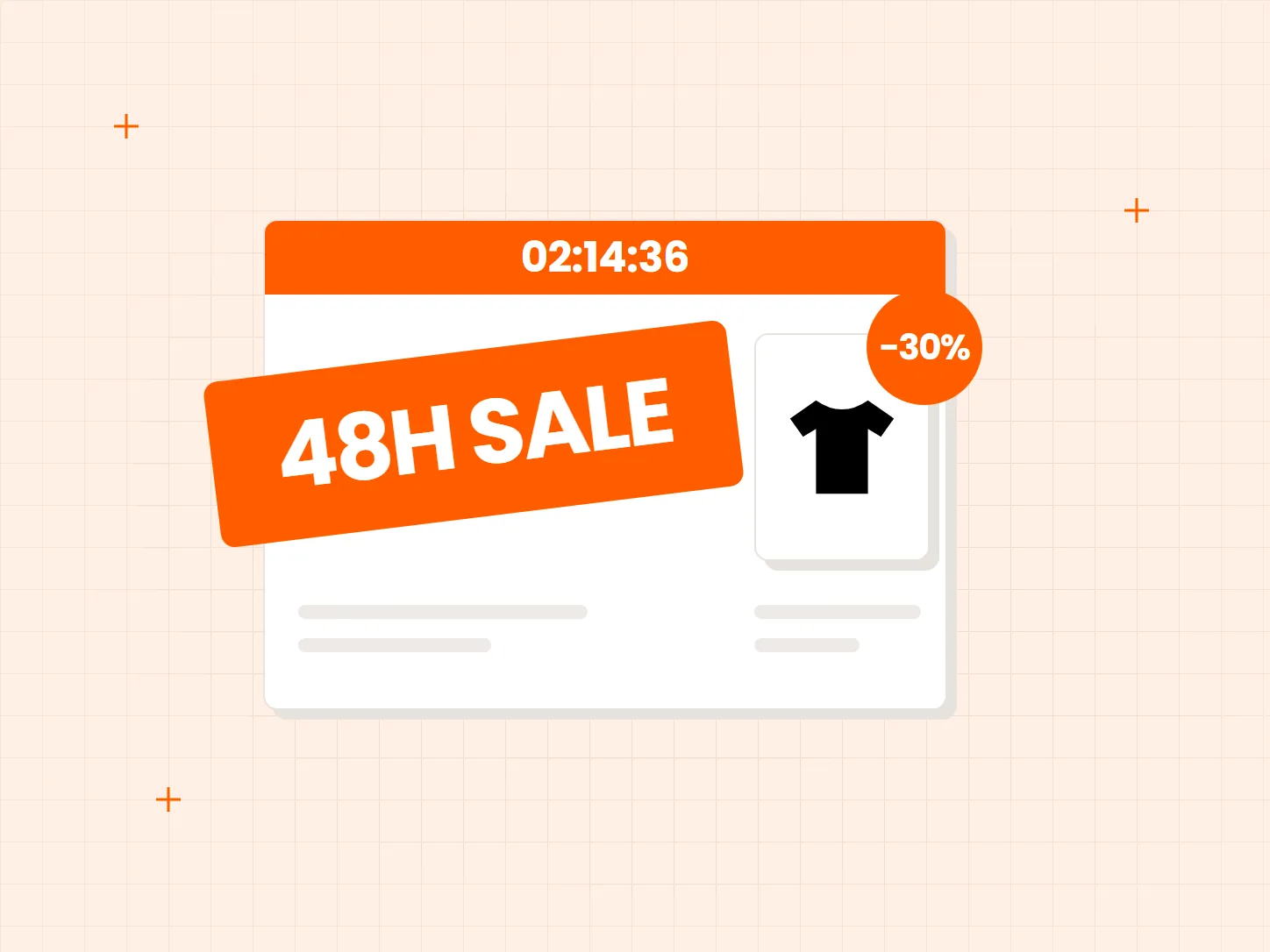
A flash sale works because it has a clear start and a clear end. When you switch things on and off by hand, the page rarely matches the plan. Each problem below has a matching fix in this setup.
Who it is for: stores running a flash sale, a Black Friday and Cyber Monday campaign, or any sale with a fixed window.
Shoppers cannot see when the sale ends, so there is no reason to buy today.
A countdown banner counts down to the end of your sale. Choose one of four timer types: a specific date, daily, by interval, or evergreen.
Someone has to switch the banner on at the start of the sale and off again at the end.
Visibility time turns the whole banner on and off by itself. It is available on the Advanced plan and above. When the countdown reaches zero, the banner can show 00:00:00 or hide.
Sale labels stay on products after the sale is over.
Schedule conditions show a label between the dates you set, and can repeat it in a recurring window. The label comes off on its own when the window closes.
Each card shows what the result looks like. Decide the start and end time first, then use the same moment in every setting.
Pick the timer type and set it to end when the sale ends.
Turn on Visibility time, then choose whether the banner shows 00:00:00 or hides at the end.
Set a start date, an end date and, if you need it, a repeating window.
Use the {countdown} variable in a text label so the timer sits on the product image.
Urgency only works when the deadline is real. End the countdown when the sale ends. Label schedules follow the browser time of the person who sets them up, and banner schedules follow the time zone set in the app, so check both against the same moment.
The countdown timer is the clock shoppers see. The schedule decides when the banner is shown at all. For a visible timer that also switches on and off by itself, set both.
Banner Visibility time needs the Advanced plan or above. Find this out before launch day, not during it.
The countdown timer is the clock that shoppers see on the banner. Schedule time, called Visibility time, decides when the banner appears and disappears. You can use either one or both.
There are four: a specific date, daily, by interval, and evergreen. Pick the one that fits how your sale runs.
You choose. The banner can show 00:00:00, or it can hide.
Yes. Schedule conditions let a label show between a start date and an end date, and repeat in a recurring window.
Yes. Add the {countdown} variable to a text label.
Every Tech Arms app installs from the Shopify App Store in minutes.