
Create the discount label
Build a text label and add the {sale} variable for the percentage, or {sale_amount} for the amount saved.
A sale price in small text is easy to scroll past. Product Labels puts the discount on the product itself as a badge, and you choose where it shows.
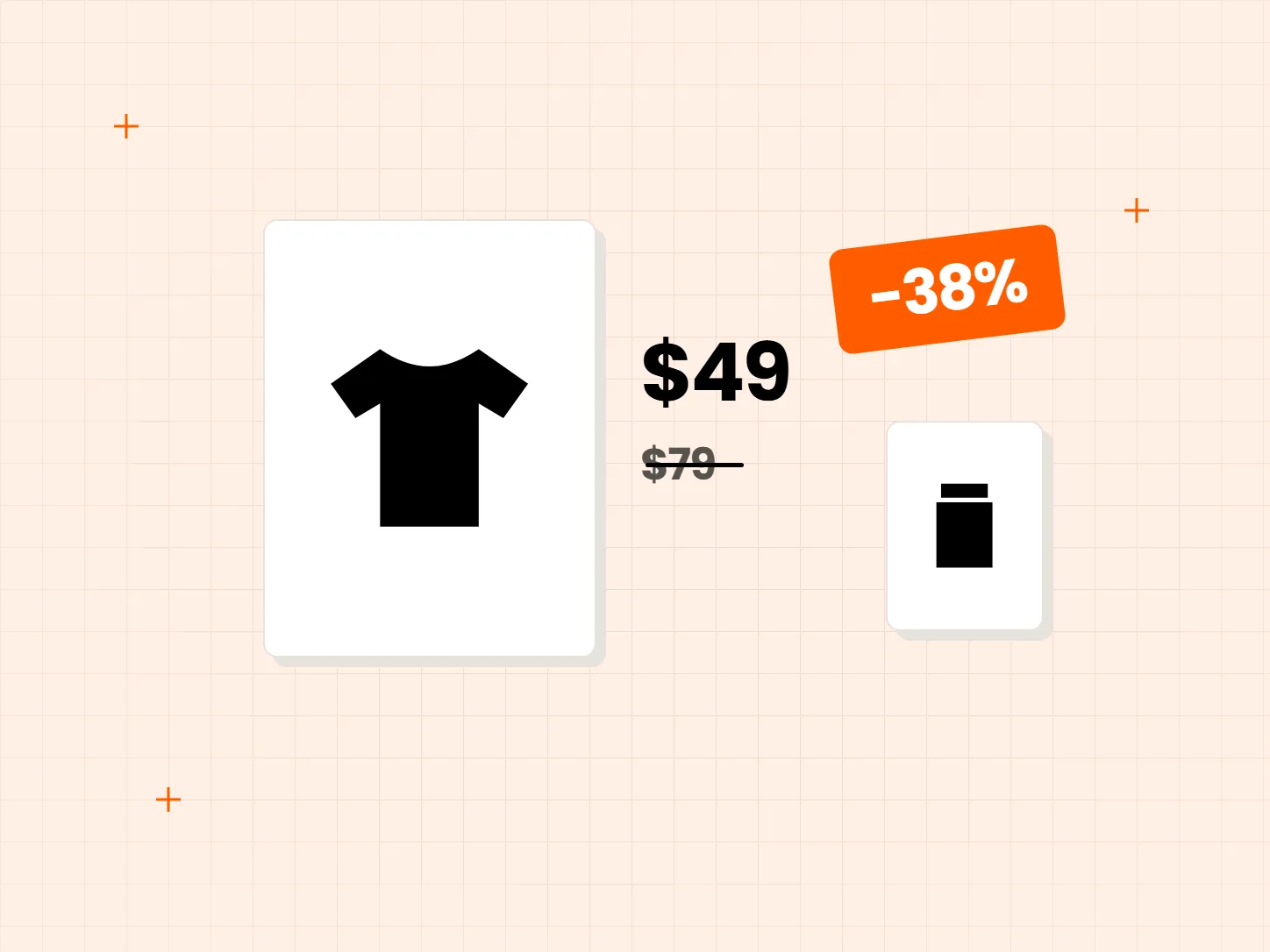
Most themes show a sale price and a struck-through old price, and little else. These are the gaps a discount badge fills.
Who it is for: stores that run sales on part of the catalog, and stores that mix full-price and discounted products on the same page.
The sale price looks like every other price on the page.
Product Labels can show the discount as a percentage or as an amount saved. The label text uses the {sale} and {sale_amount} variables, so each product shows its own number.
Not every collection or variant is on sale at the same time.
Conditions decide which products get the label. You can match by collection, tag, variant, vendor or metafield.
A small discount and a big one get the same treatment.
The Discount range condition lets you show a label only for products whose discount falls in the range you set.
Everything happens inside one app. Start with the label itself, then decide where it shows.
Build a text label and add the {sale} variable for the percentage, or {sale_amount} for the amount saved.
Use an image badge and set its position to before or after the product price.
Add a collection or variant condition so the label only shows where the sale applies.
Add the Discount range condition to show the label only for products inside the range you choose.
The discount is worked out only from the compare-at price against the price. A product with no compare-at price gets no discount label.
When a product has variants, the label uses the largest discount among them. Check a product with mixed variant prices before you publish.
From the compare-at price compared with the price. If a product has no compare-at price, there is no discount to show and no label appears.
Yes. Use the {sale_amount} variable for the amount saved, or the {sale} variable for the percentage.
Yes, for image badges. You can set the badge position to before or after the product price.
Yes. Use a collection or variant condition.
The label uses the best discount among the variants.
Every Tech Arms app installs from the Shopify App Store in minutes.