
Choose where Notify me appears
Open Back in Stock and set the scope: all products, selected products or selected collections.
Add a Notify me button to sold-out items. Shoppers leave their email, and Preorder & Back in Stock can send the restock email for you when the stock comes back.
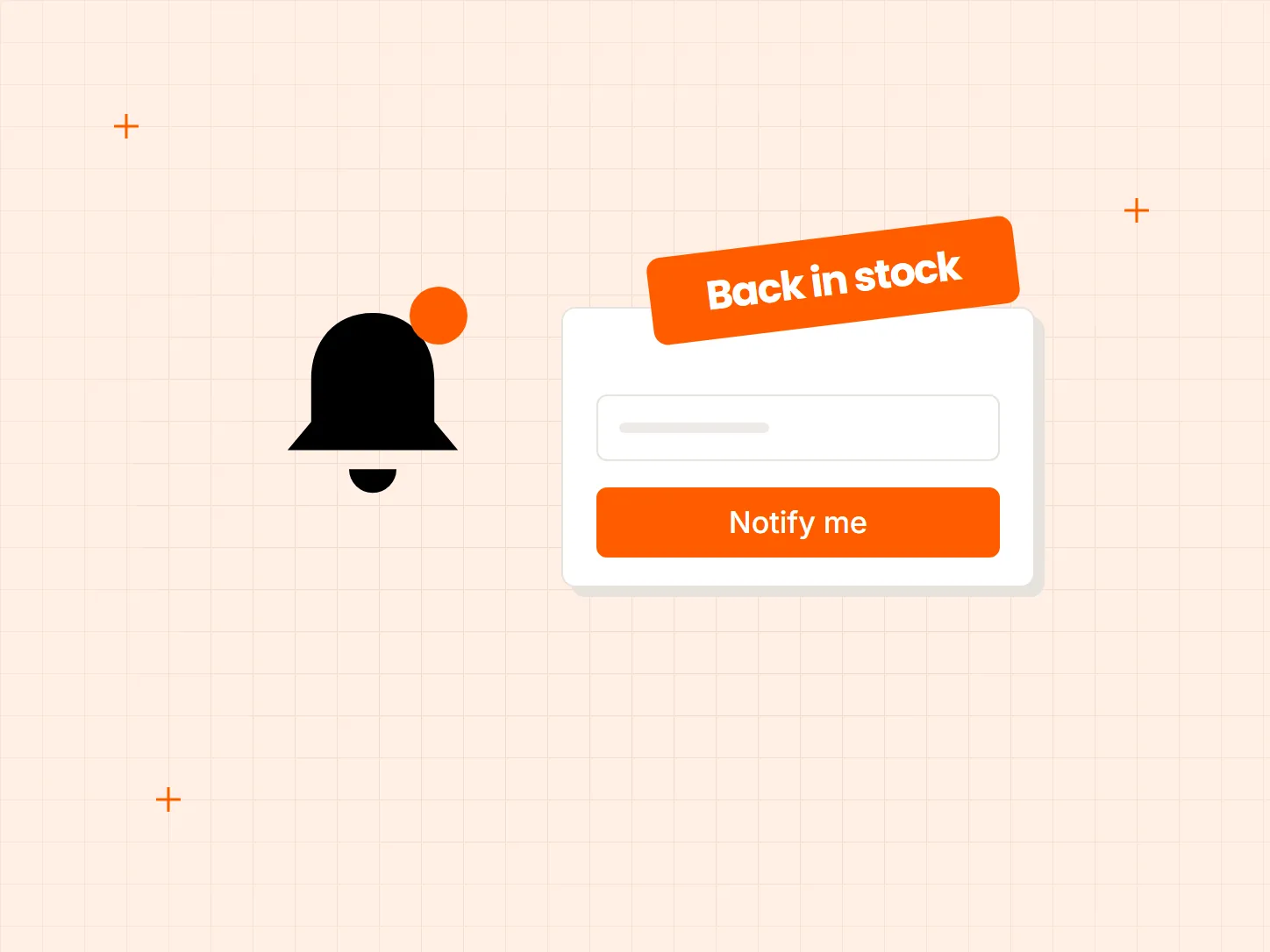
A restock is only useful if the people who wanted the item find out. Each problem below has a matching fix in this setup.
Who it is for: stores that restock popular items, sell in small batches or run out of sizes between deliveries.
A shopper wants a sold-out item, has no way to say so, and forgets your store.
The button sits on sold-out items. Shoppers type their email into a short form, and you keep a list of who is waiting.
You restock, and nobody knows until they happen to check the page.
With Send email automatically on, the app emails shoppers when a variant moves above zero stock, whichever way the stock was updated.
Alerts only on a few products leave the rest of the catalog silent.
Show Notify me on all products, on selected products, or on selected collections, and rename the button to match your store.
Each card shows what the result looks like. Decide the scope first, then the button, then the email.
Open Back in Stock and set the scope: all products, selected products or selected collections.
Rename the Notify me button so it reads the way your store talks.
Switch on Send email automatically so the alert goes out when stock returns.
Customize the restock email with your logo, and use the manual send button when you want to trigger it yourself.
The alert follows each variant. Restocking one size triggers the alert for that size, not for the whole product, so update stock for each variant that returns.
Automatic emails go out when stock arrives, and only if Send email automatically is on at that moment. If it was off, use the manual send button.
Sending is limited per month. Look at your allowance in the app before a large restock, so you know how many alerts can go out.
Yes. You can show it on all products, on selected products or on selected collections.
When a variant has stock above zero and Send email automatically is on. It does not matter how the stock was updated.
Yes. There is a manual send button for the times you want to trigger the alert yourself.
Yes. The Notify me label is editable, and you can add your logo to the restock email.
They enter their email address in a short form after clicking the Notify me button.
Every Tech Arms app installs from the Shopify App Store in minutes.