
Create the presale campaign
Set the dates, set a unit limit and add the ship date and a short note for shoppers.
Open a new product for presale before stock arrives, set a unit limit, and count shoppers down to the launch time. TA Preorder takes the orders, TA Banner shows the countdown, and TA Labels marks the new products.
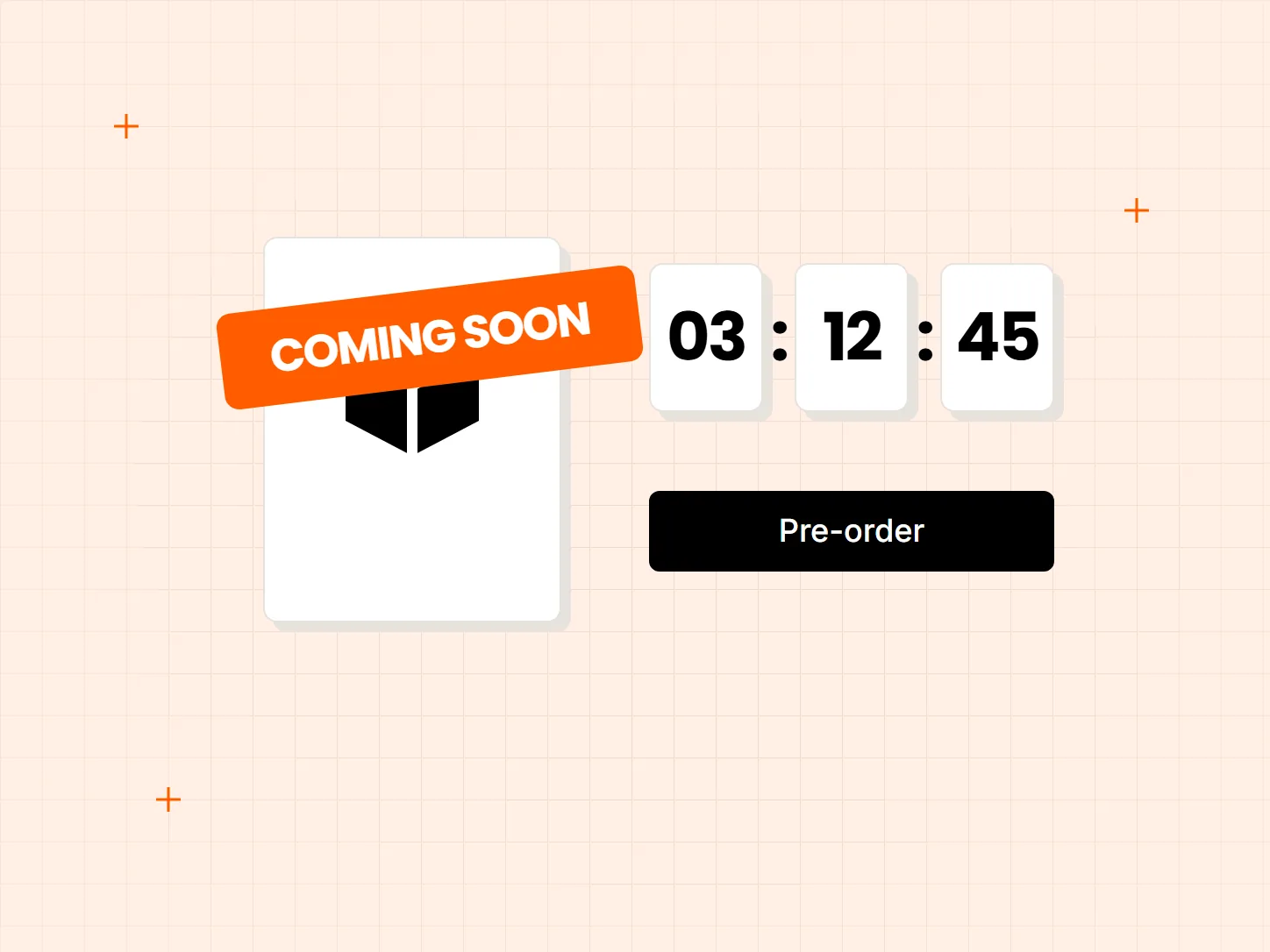
Shoppers arrive from a teaser post or launch email ready to commit, and the store has nothing for them to buy yet. Each problem below has a matching fix in this setup.
Who it is for: brands releasing a new collection, makers selling small batches, and stores running limited-quantity drops.
Shoppers who land before launch find "Sold out", or no product at all, and some never come back.
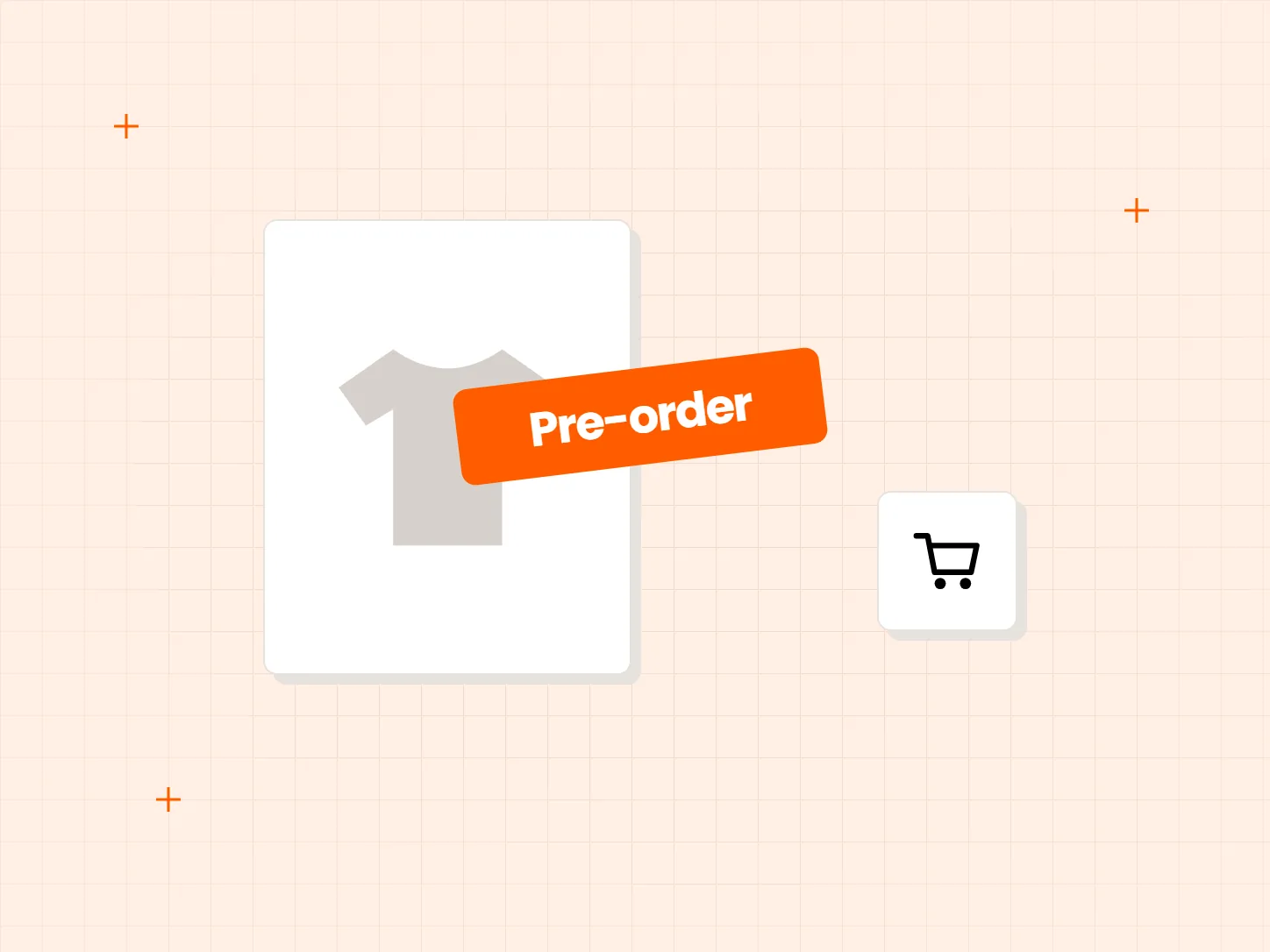
A presale campaign swaps the sold-out button for a preorder button from the day you choose. Shoppers commit while interest is high, and the note under the button tells them when to expect the order.
A buy button that goes live late, or a countdown that ends early, costs the first wave of orders.
The campaign opens and closes on set dates, and the countdown is set to end at the same moment. Nobody has to switch anything on by hand at launch time.
Once the launch post is gone, new products look the same as old ones on collection pages.
A "New" label goes on the launch products at launch and comes off on the date you set, so they stand out in every product grid for the first weeks.
Each card shows what the result looks like. The campaign comes first, because its dates set the timing for the countdown and the label.
Set the dates, set a unit limit and add the ship date and a short note for shoppers.
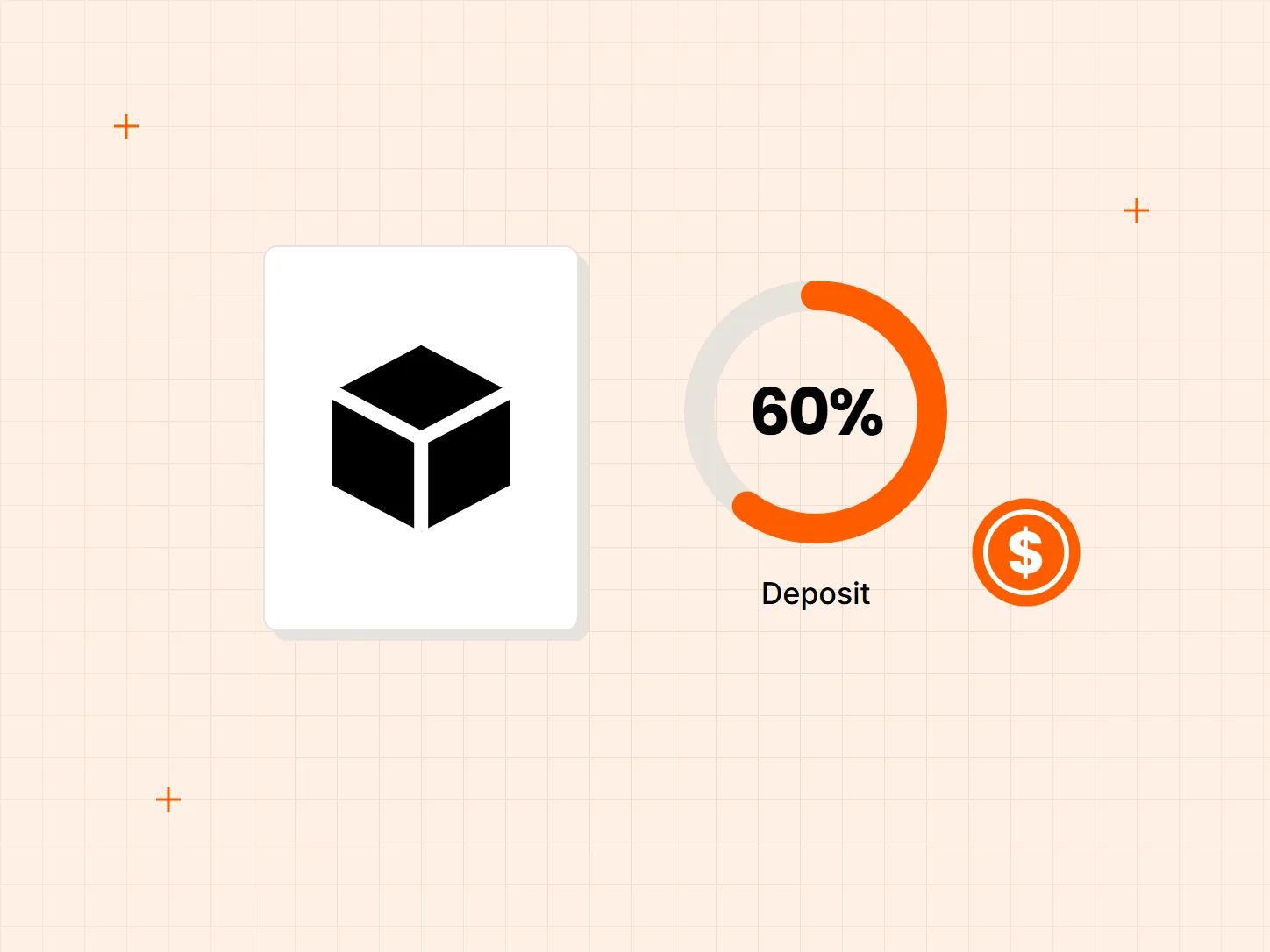
Full price, or a deposit now and the balance before shipping.
Set the timer to end when the presale opens, on the home and launch pages.
Show "New" on the launch products from launch day until the date you choose.
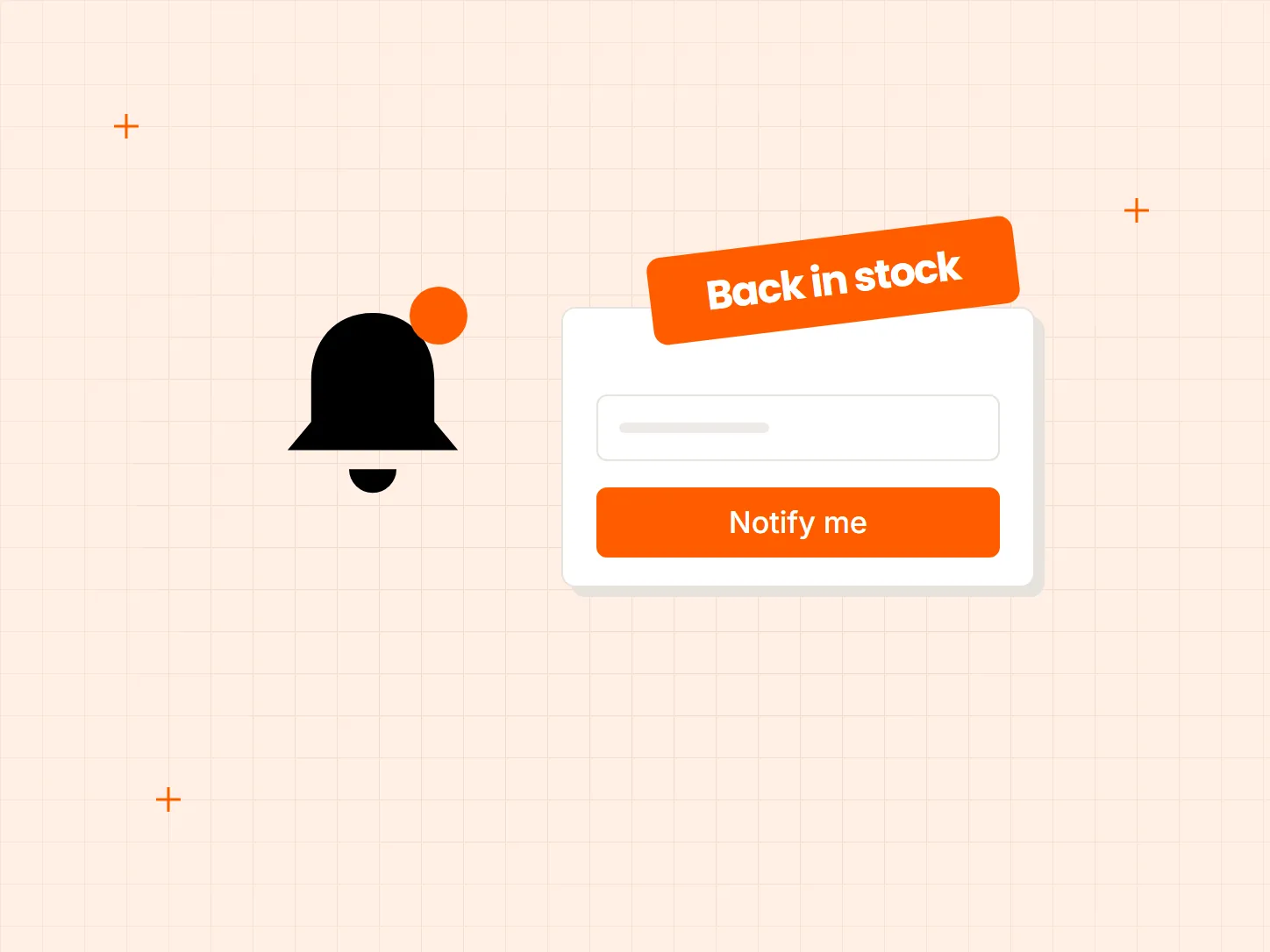
Use a presale when you need payment before production. Use the Notify me waitlist when stock is ready on day one and you want a list to email at launch.
TA Preorder has its own preorder badge. Keep preorder status there and use TA Labels for "New", so one image does not carry two badges that say the same thing.
Every countdown should end at an actual launch or closing time. A timer that resets, or ends with no change on the page, is fake urgency.
Yes. In a TA Preorder campaign, turn on Limit inventory and enter the maximum quantity. Test it on one product before launch day.
Yes. Choose Partial payment (Deposit) in the campaign. Deposits need Shopify Payments. Customers pay the deposit at checkout, and you collect the balance from Shopify admin when the order is ready to fulfill.
Yes. Select only the variants you want when you add products to the campaign. Each variant can belong to one active campaign at a time.
Set an estimated ship date in the campaign: unknown, a number of days after checkout, or a fixed date. Add a short note under the preorder button, and the ship date is available in the shipping notification email.
Every Tech Arms app installs from the Shopify App Store in minutes.