
Create a campaign and pick what to sell
Add the products, collections or individual variants that should stay on sale at zero stock.
Pick the products and variants you want to keep selling. When stock reaches zero, Preorder & Back in Stock swaps the dead Add to cart for a preorder button, so shoppers can still order.
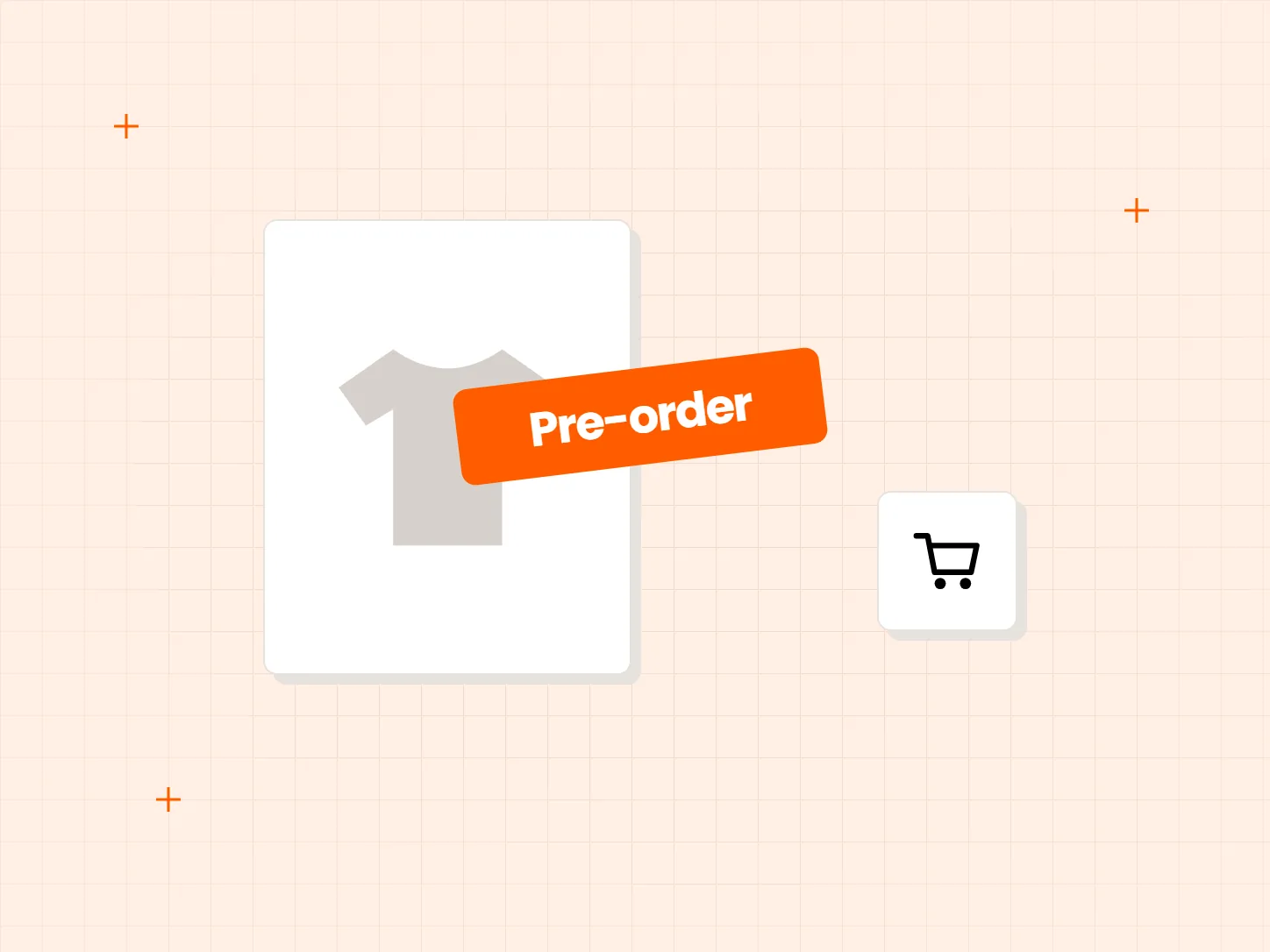
Popular items run out before the next shipment lands. Each problem below has a matching fix in this setup.
Who it is for: stores whose best sellers sell out between restocks, and stores that sell by size or color.
Shoppers reach a sold-out product page and leave, and the sale goes to another store.
Create a preorder campaign in Show when out of stock mode. When stock is zero, the preorder button replaces Add to cart, so interest turns into an order.
Only one size or color has run out, but the whole product looks unavailable.
Select the exact variants when you add products to a campaign. Sizes that are in stock keep their normal Add to cart.
Shoppers do not know when a sold-out item will come back.
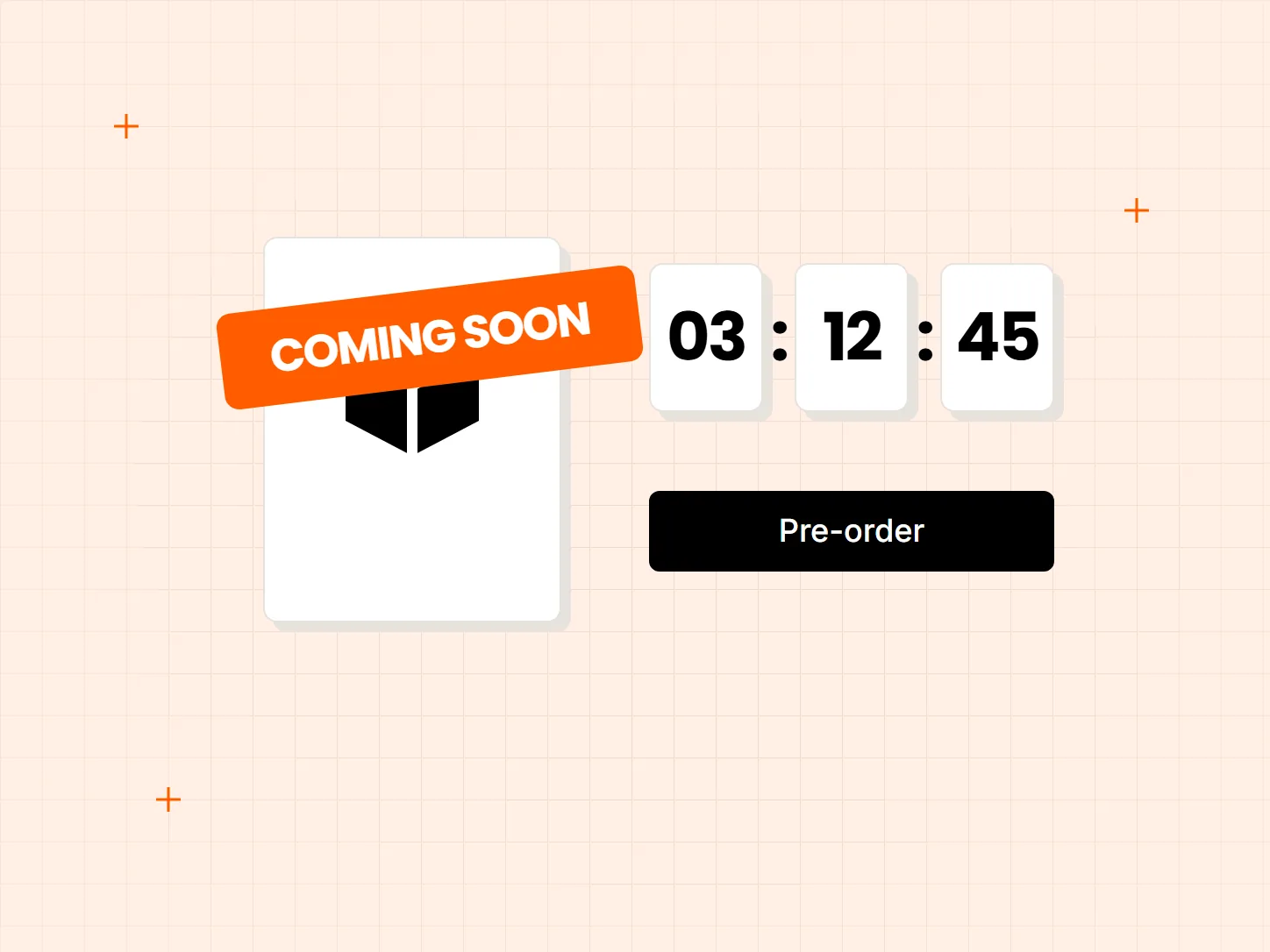
Set an estimated ship date and a short note under the preorder button, so buyers know what they are ordering before they check out.
Each card shows what the result looks like. Start with the campaign, because the products you pick decide where the button appears.
Add the products, collections or individual variants that should stay on sale at zero stock.
Choose the Show when out of stock mode, so the preorder button appears only once inventory hits zero.
Pick an estimated ship date and write a short note that appears under the preorder button.
Set one variant to zero stock in Shopify admin, then open its product page and check the button.
A preorder campaign covers the products, collections or variants you add to it. It does not turn every sold-out product into a preorder on its own, so add new sellers as they appear.
When a variant has stock again, shoppers see the normal Add to cart. Keep inventory counts in Shopify accurate so the switch happens when you expect it.
A preorder is not the same as in stock. Use the ship date and the note under the button so shoppers know they are ordering ahead of stock.
Yes. In Show when out of stock mode, the preorder button replaces Add to cart when stock reaches zero. Once the variant has stock again, the page switches back.
Yes. Select only the variants you want when you add products to the campaign.
No. You choose the products, collections or variants in each campaign. Back in Stock alerts can cover every sold-out product, as the next use case shows.
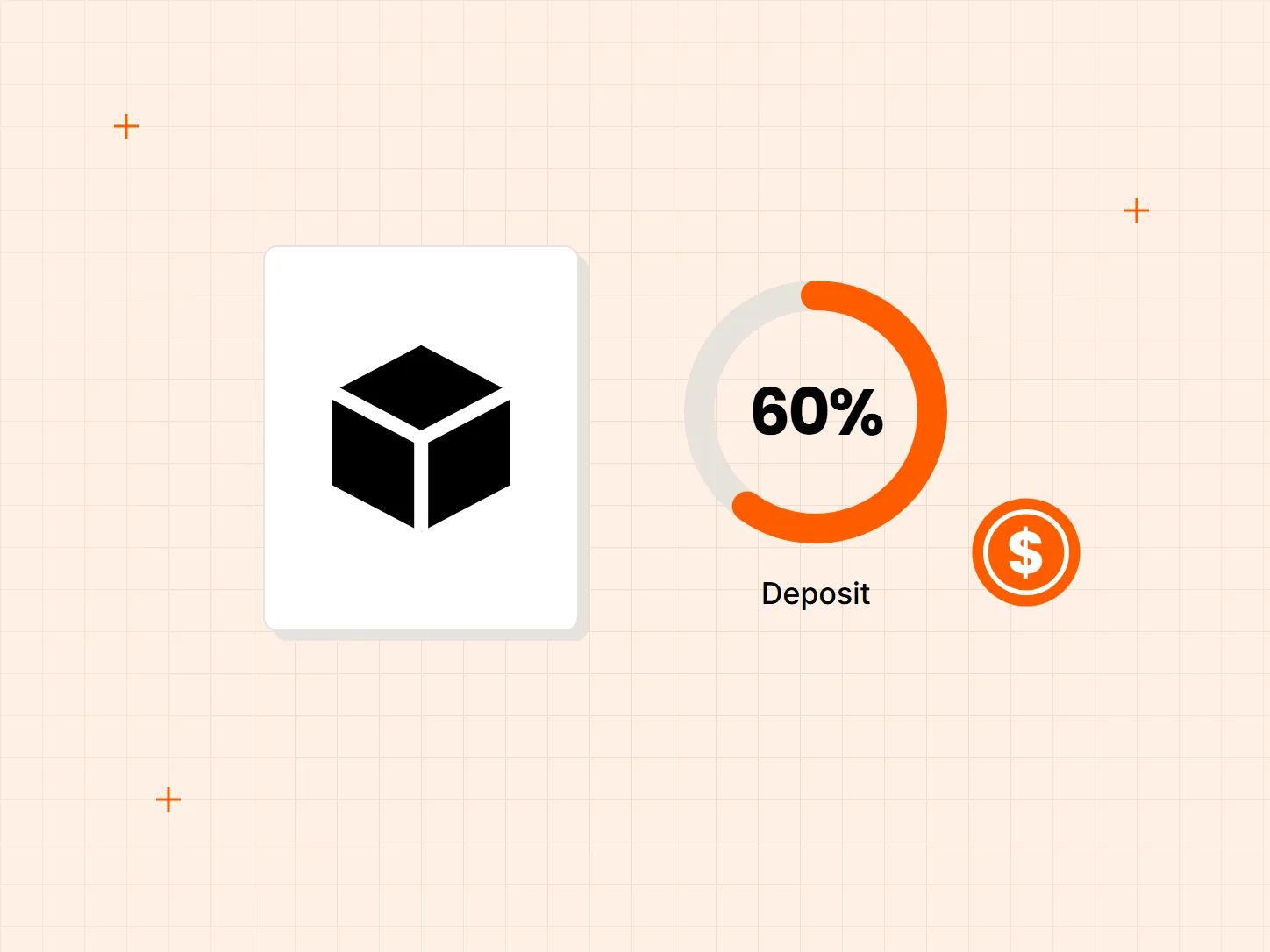
You can take full payment or a deposit. Deposits need Shopify Payments, and the presales use case below explains how they work.
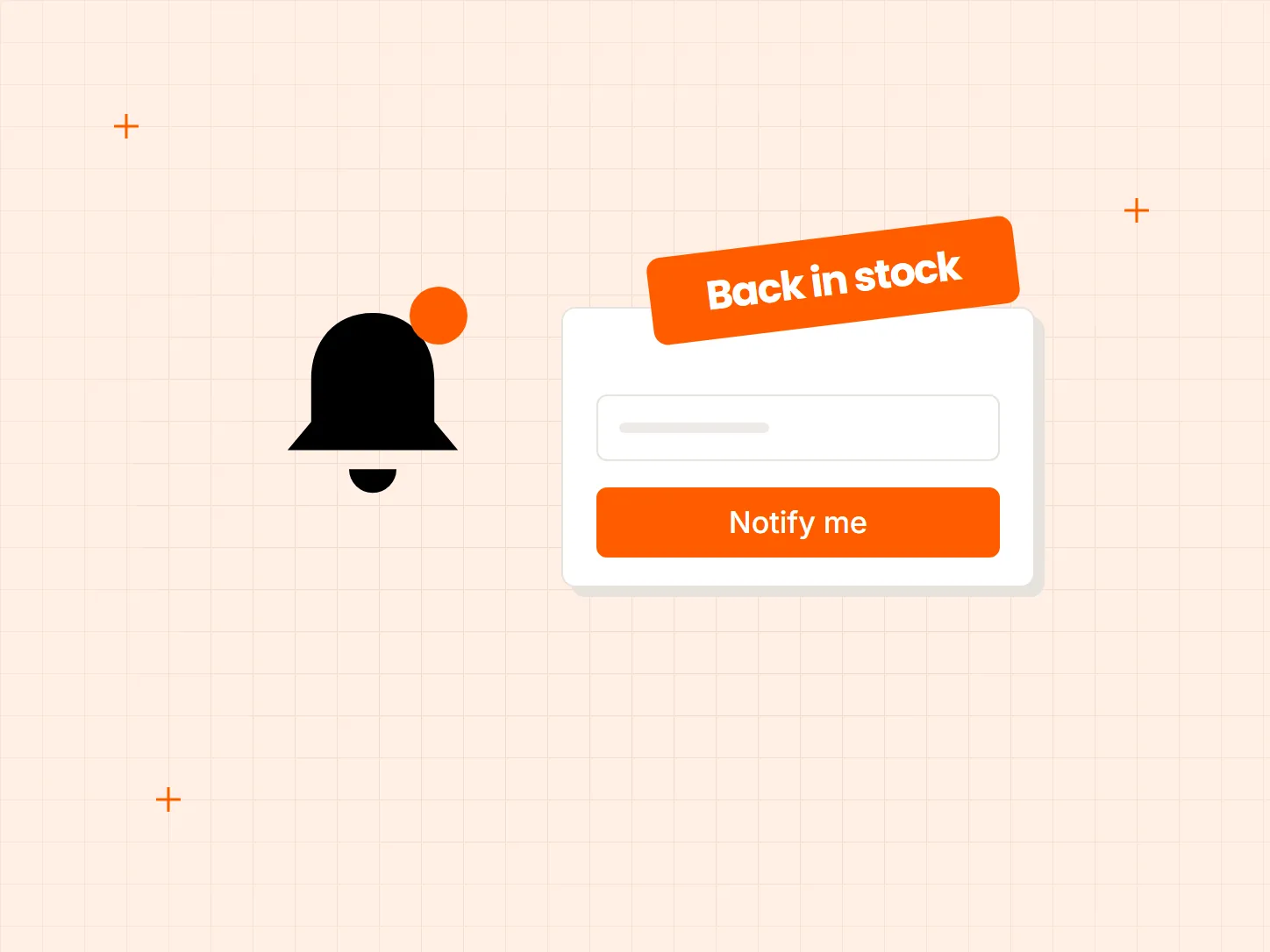
Add a Notify me button with Back in Stock, so shoppers can sign up and get an email when the item returns.
Every Tech Arms app installs from the Shopify App Store in minutes.